
[stm_icon_button align=”right” icon=”fa fa-download” link=”url:http%3A%2F%2Fcruxinterfacing.com%2Fwp-content%2Fuploads%2F2018%2F05%2FCRUX-Flasher-setup.zip|title:CRUX-Flasher||” css=”.vc_custom_1528912299474{margin-top: 30px !important;}”]
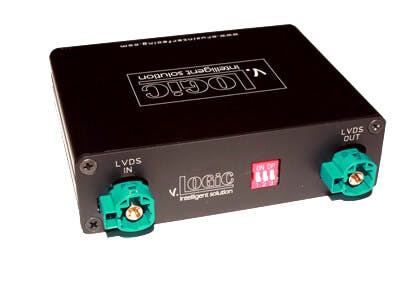
VRFBM-77F
Installation Instructions
- Download the latest firmware.
- Open CRUX-Flasher.
- Connect interface to PC, once loaded click “List Devices”
- Interface Product ID will show up in display window.
- Click “Browse” and select firmware BIN file.
- Click “Flash”, wait for “update successful”.
- Click “Exit and disconnect interface module.
CRUX-Flasher Installation Instructions.
- Download CRUX-Flasher.
- Click “lch stimme zu”.
- Double-click “setup.exe”.
- Click “Install”.
- CRUX-Flasher will open.
*Only Compatible with Windows.