
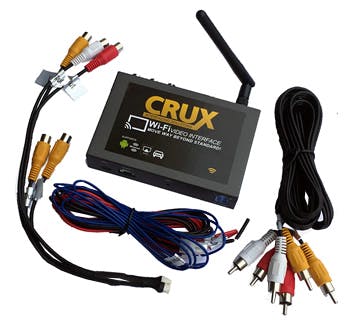
WVI-X
Installation Instructions
- Open ‘software’ folder or Dropbox link
- Once all the files are downloaded from the link, place “EZCar.conf and EZcar.gz files on USB flash drive. (128MB or higher flash drive recommended)
- Power on WVI-X module, wait for unit to BOOT up and display CRUX logo.
- Plug the Usb flash drive, the update process will begin in 5-10 seconds and update the software automatically.
- Once the update is completed the WVI-X it will power off and power on.
- Uplug the USB flash drive after software update.
******** please note: Don’t power off during the software updating process.