
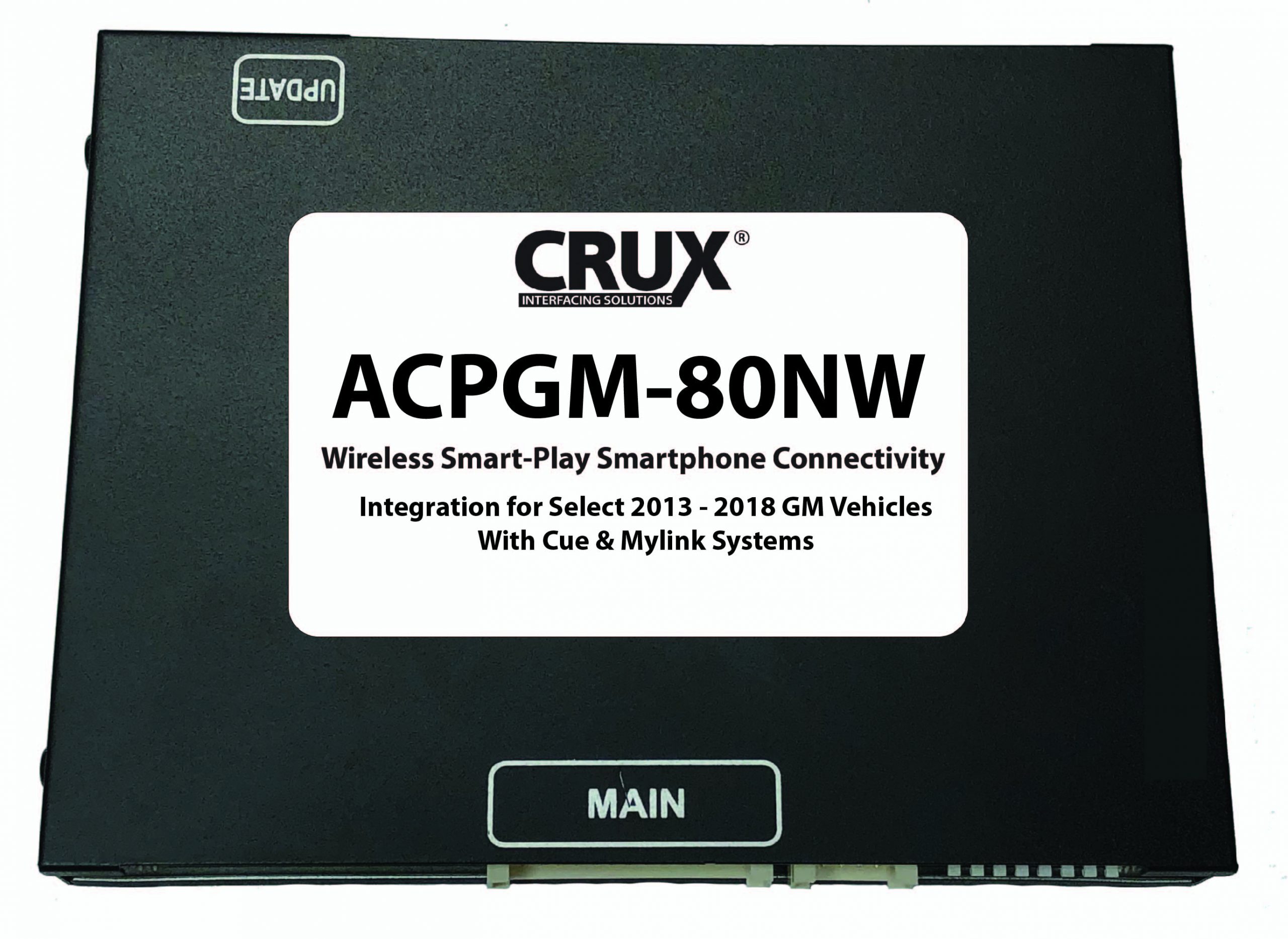
ACPGM 80NW Module scaled
[stm_icon_button align=”right” link=”url:http%3A%2F%2Fcruxinterfacing.com%2Fwp-content%2Fuploads%2F2022%2F05%2FOnetake-Firmware-Update-Manual.pdf|title:Firmware%20Update%20Manual” box_bg_color=”#ffffff” box_text_color=”#0a0a0a” css=”.vc_custom_1654025332645{margin-top: -40px !important;margin-bottom: 10px !important;}”]
[stm_icon_button align=”right” link=”url:http%3A%2F%2Fcruxinterfacing.com%2Fwp-content%2Fuploads%2F2022%2F05%2FNV1_ST_08010000_GM77_PLUS_2020_04_21.bin|title:DOWNLOAD%20FIRMWARE” box_bg_color=”#ffffff” box_text_color=”#0a0a0a” css=”.vc_custom_1654025663076{margin-top: -40px !important;margin-bottom: 10px !important;}”]
[stm_icon_button align=”right” link=”url:http%3A%2F%2Fcruxinterfacing.com%2Fwp-content%2Fuploads%2F2022%2F05%2FDriver.zip|title:CRUX-Flasher” css=”.vc_custom_1654025538500{margin-top: 30px !important;}”]

ACPGM-80NW

Installation Instructions

  • Download the latest firmware.
  • Open CRUX-Onetake Flasher.
  • Insert the Software bin file. If the file is loaded correctly the file list will appear.
  • Connect interface to PC via mini usb, once loaded select “Insert”
  • The file will automatically update
  • Download counting number will increase by 1 number if your update procedure is properly finished

CRUX-Flasher Installation Instructions.

  • Download CRUX-Onetake Flasher.
  • Depending on your windows driver select & install either  “Windows 32bit” or “windows 64bit”
  • Run Crux  “Navitech update tool.exe”
  • Click “Auto update”.
  • CRUX update tool will open.


*Only Compatible with Windows.

Detailed Installation Instructions.